
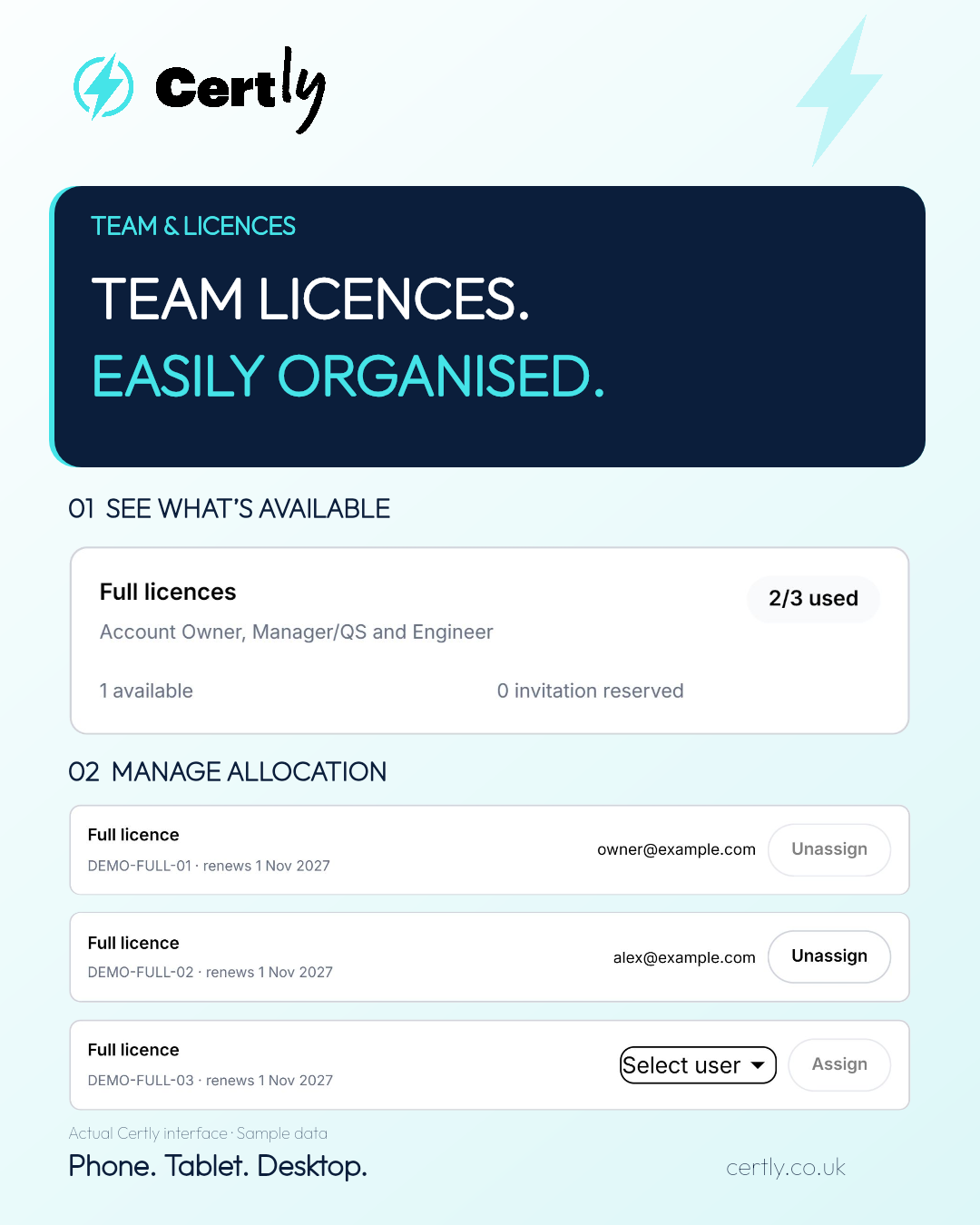
Running an electrical business means keeping track of people as well as paperwork. When a new engineer joins, a colleague moves roles or your workload grows, you need a clear view of the licences your team has available.
Certly’s Team & Licences workspace brings company licence availability, purchases and assignments together. It gives authorised users a practical way to manage access to electrical certification software, alongside the certificates, clients and jobs the business works with.
See your full licence availability at a glance
Open Settings → Team & Licences to see your company’s licence summary. The Full licences card shows how many are used, how many are available and whether any are reserved for invitations.
In the example below, the company has three full licences: two are assigned and one is available. The reserved figure helps distinguish an unallocated licence from one already set aside for an invited colleague.
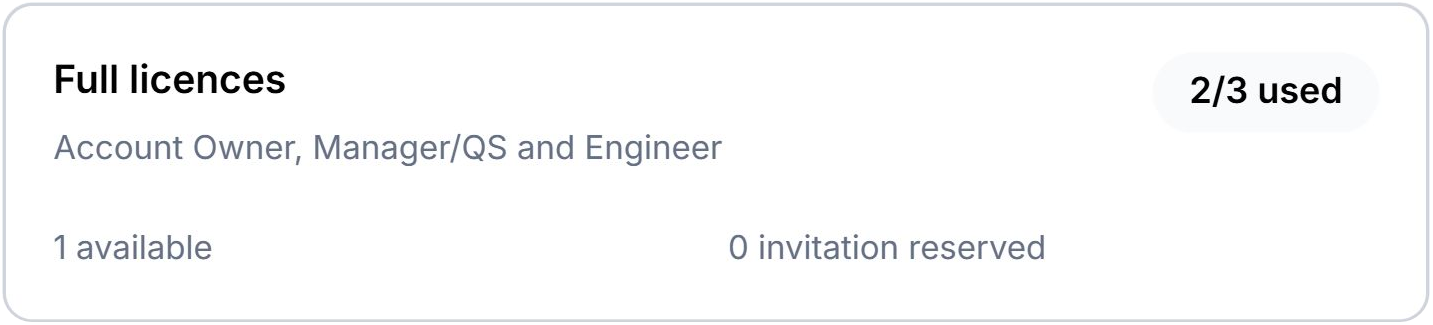
Full licences cover the Account Owner, Manager/QS and Engineer roles. Permissions remain a separate control: having a licence does not automatically give every team member access to company billing or administration.
Buy additional Certly licences when you need them
From Team & Licences, choose Buy licences & billing. Select the licence type, billing term and quantity, review the selection and continue to checkout. Check the billing term is the one you want before purchasing.
Buying additional licences adds to your company’s pool; it does not replace existing licences. Include the Account Owner when buying for a new company. If the owner already has an Apple or Google subscription, check the existing allocation and buy only the additional licences needed.
App Store and Google Play subscriptions remain separately managed through their respective stores. A web purchase does not cancel an existing store subscription.
Invite colleagues and allocate licences
Use Team & assignments to invite colleagues with the appropriate role. A matching named licence is reserved while an invitation is pending and normally assigned when the recipient accepts. Invitations last seven days; a reservation can also be released if the invitation is revoked or expires.
This gives a new engineer a route into the company workspace without having to manage everyone through one shared login. Company access still depends on each person’s role and permissions.
View and manage individual licence assignments
The named licence pool provides a view of purchased licences and their assignments. Authorised users can select an eligible unlicensed member and assign an available matching licence. This manual control is particularly useful for existing or manually prepared users; new invitations normally handle allocation automatically.
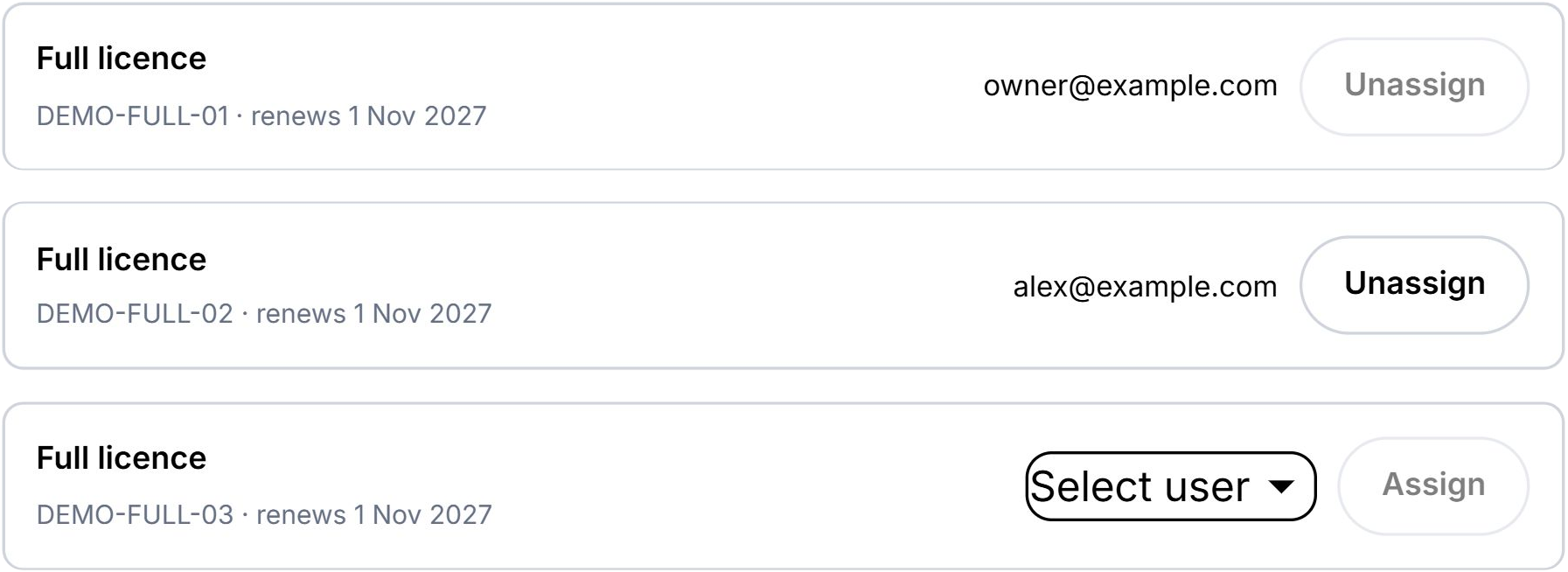
Where permitted, an assigned licence can be returned to the company pool for reassignment during its remaining paid term. The Account Owner’s allocation is protected in these controls. Unassigning a licence is not the same as cancelling a subscription: it does not refund the paid term or turn off renewal.
Licence allocation is separate from team permissions
Company licence management answers who has a licence. Team roles and permissions determine what each colleague can see and manage. For example, purchasing licences and viewing billing require the relevant permissions; they are not available to every user simply because they can create certificates.
That distinction matters for electrical contractors managing engineers, Qualified Supervisors and office colleagues. Give people access suited to their work, and review both their licence allocation and their permissions when responsibilities change.
One workspace for your electrical certification team
Whether your team is working on EICRs, Electrical Installation Certificates or Minor Electrical Installation Works Certificates, licence administration should be easy to find. Certly brings it into the same workspace as your company’s certification work.
With access on phone, tablet and desktop, Certly aims to make electrical certification simpler to complete and easier to manage as your business grows.
Common questions
Can I buy more than one full licence?
Yes. Select the quantity you need in Buy licences & billing and check the type and billing term before checkout.
Do I have to assign every new licence manually?
No. A team invitation normally reserves a matching available licence and assigns it when accepted. Manual allocation is also available in the named licence pool for eligible existing users.
Does unassigning a licence cancel payment?
No. Allocation and renewal are separate. Use the billing and renewal controls to manage future payments.
Where do I get help?
Reply to a Certly email or contact team@certly.co.uk. You can speak to a real person about setting up your company and team.