
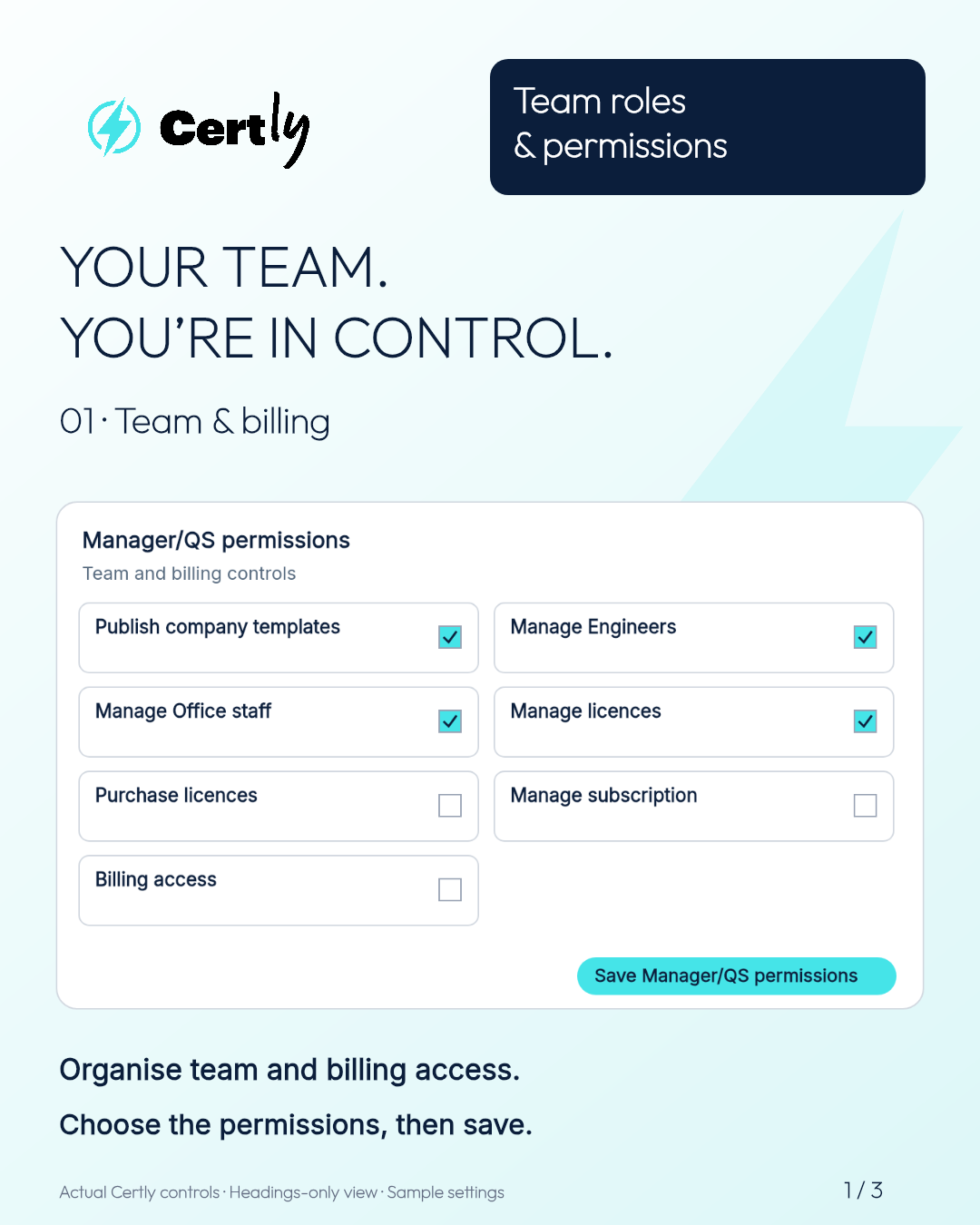
Choose what your team can see and do in Certly. Bring company roles, licence controls and operational permissions together, with tick-box settings that make your team setup easy to review.
For electrical contractors, fire safety businesses, emergency lighting specialists, EV and solar installers, and PAT testing teams, the aim is straightforward: give each colleague the tools that match their work.
01 · Team & billing
Choose who can publish company templates, manage Engineers and Office staff, assign or purchase licences, manage subscriptions and view billing information.
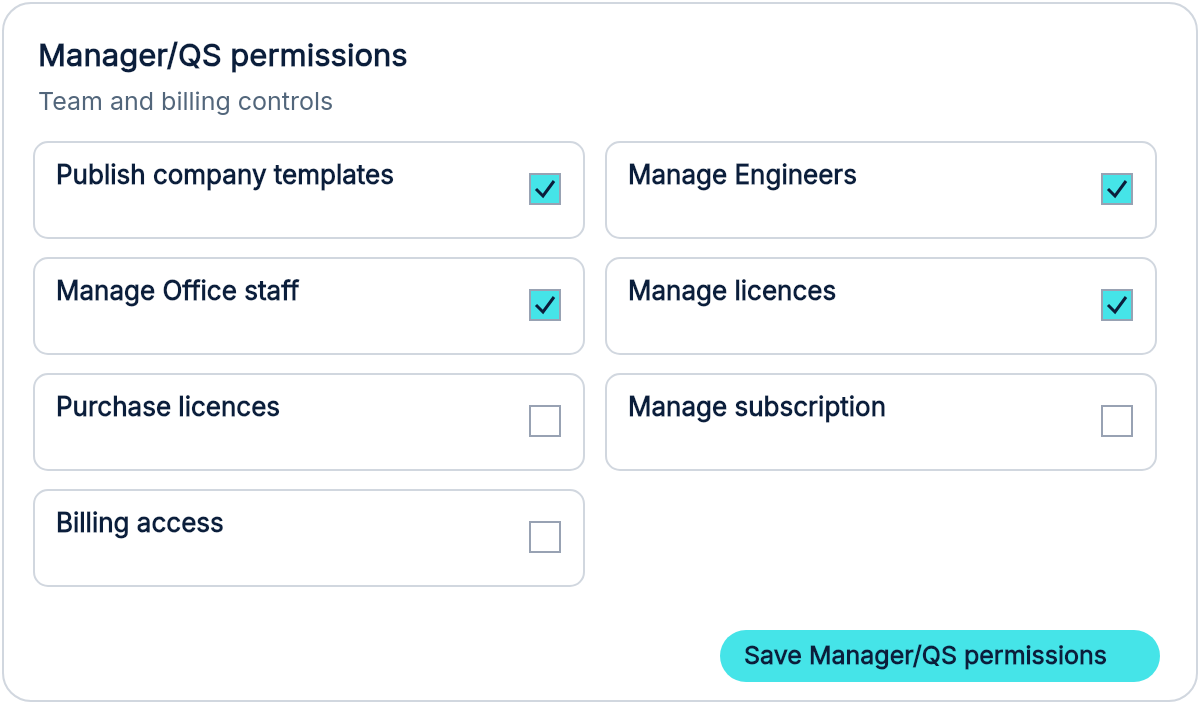
- Publish company templates — Allow QS users to publish templates for the whole company. Engineers can use or copy them.
- Manage Engineers — Invite, remove and manage Engineer team members.
- Manage Office staff — Invite, remove and manage Office team members.
- Manage licences — Assign and remove licences the company has already purchased.
- Purchase licences — Buy an additional named licence for a new user.
- Manage subscription — Control future renewals and subscription-level changes.
- Billing access — View invoices and payment information.
02 · Operational access
Choose access to company certificates, completed-certificate downloads, jobs, clients, properties and Engineer calendars.
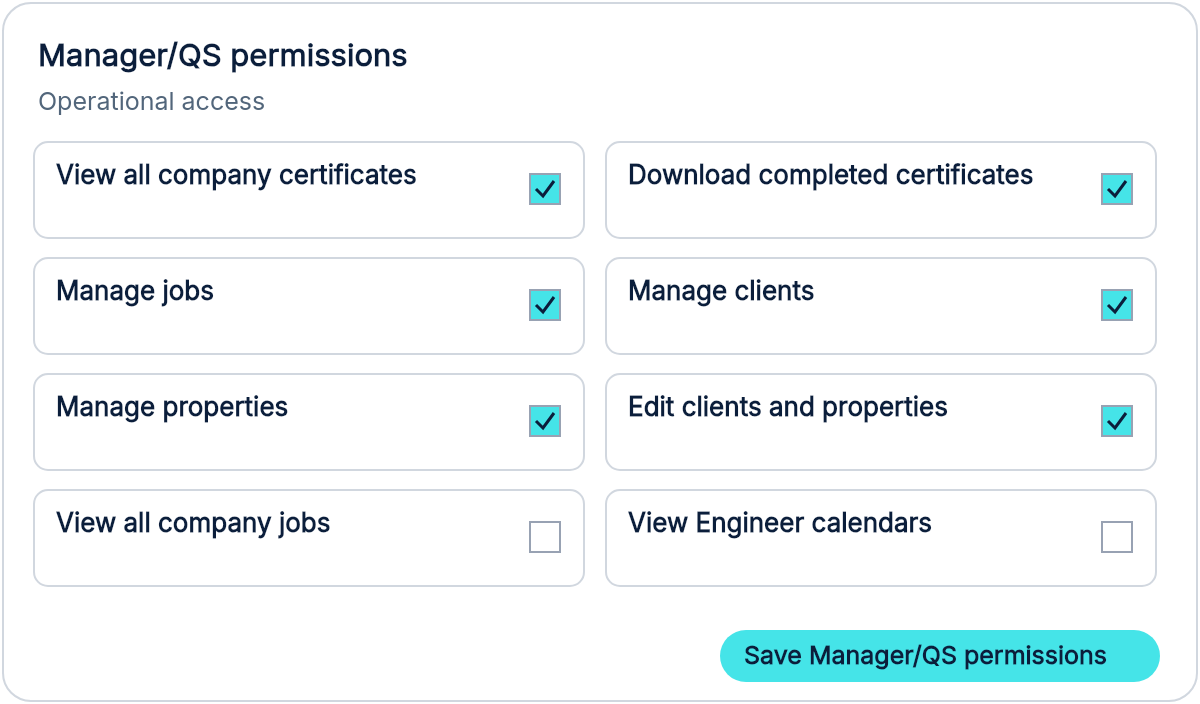
- View all company certificates — See certificates created by other company users.
- Download completed certificates — Download and distribute completed company certificates.
- Manage jobs — Create, edit and organise company jobs.
- Manage clients — Create and maintain company client records.
- Manage properties — Create and maintain company property records.
- Edit clients and properties — Correct shared client and property details.
- View all company jobs — See jobs beyond those personally assigned.
- View Engineer calendars — See other Engineers’ diary and job allocations.
03 · Office permissions
Set up Office users to help organise clients, properties and jobs, view calendars and download completed certificates.
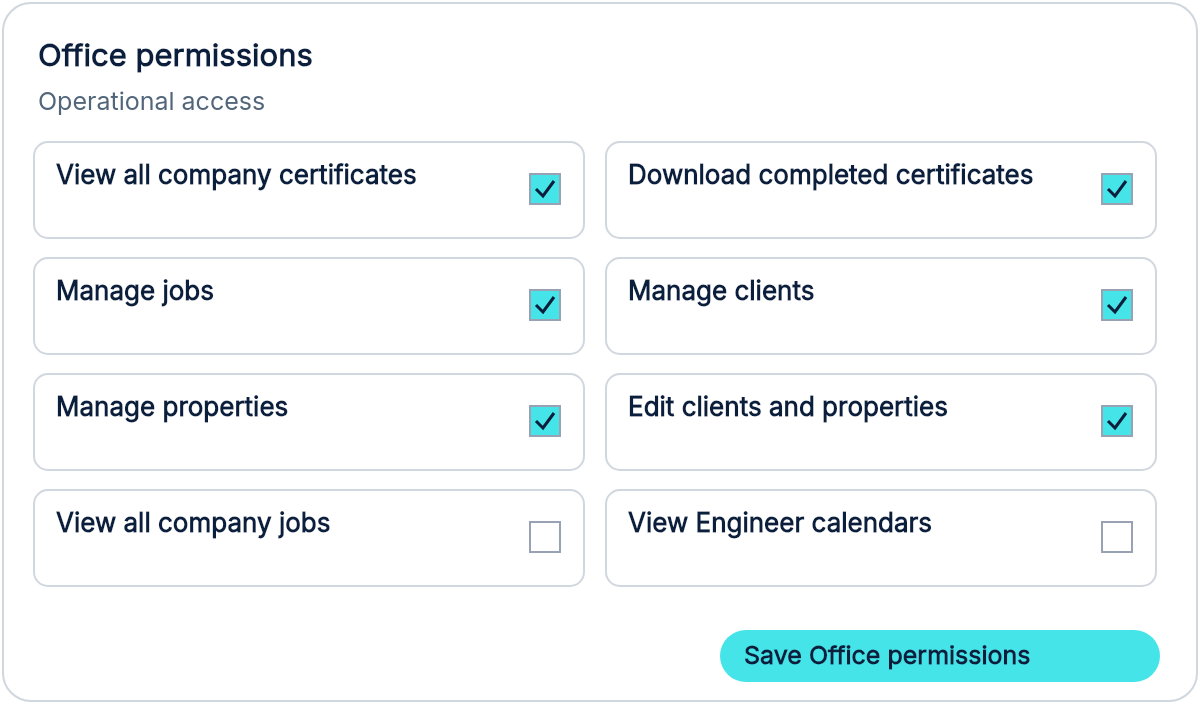
- View all company certificates — See certificates created by other company users.
- Download completed certificates — Download and distribute completed company certificates.
- Manage jobs — Create, edit and organise company jobs.
- Manage clients — Create and maintain company client records.
- Manage properties — Create and maintain company property records.
- Edit clients and properties — Correct shared client and property details.
- View all company jobs — See jobs beyond those personally assigned.
- View Engineer calendars — See other Engineers’ diary and job allocations.
Set Engineer defaults for the way your team works
Choose whether Engineers see their own certificates or all company certificates, and assigned jobs or company jobs. You can also set client and property editing and access to other Engineer calendars.
Tailor individual permissions
Company role defaults give you a consistent starting point. Individual permissions let you follow that setup or choose Allow or Deny for the settings available to a particular team member.
How to set up team permissions in Certly
- Open Settings → Team & Licences → Permissions & sharing.
- Choose the role section and tick the permissions you want.
- Save the permissions for that role.
- Use individual settings when a team member needs a different setup.
One place for your team’s certificate workflow
Certly brings certificate management, company templates, client records, properties, electrical job management and team calendars into one workspace. Organise the access your team needs, so everyone can get on with their part of the job.
Open Certly and organise your team →
Need a hand? Email team@certly.co.uk and speak to a real person.